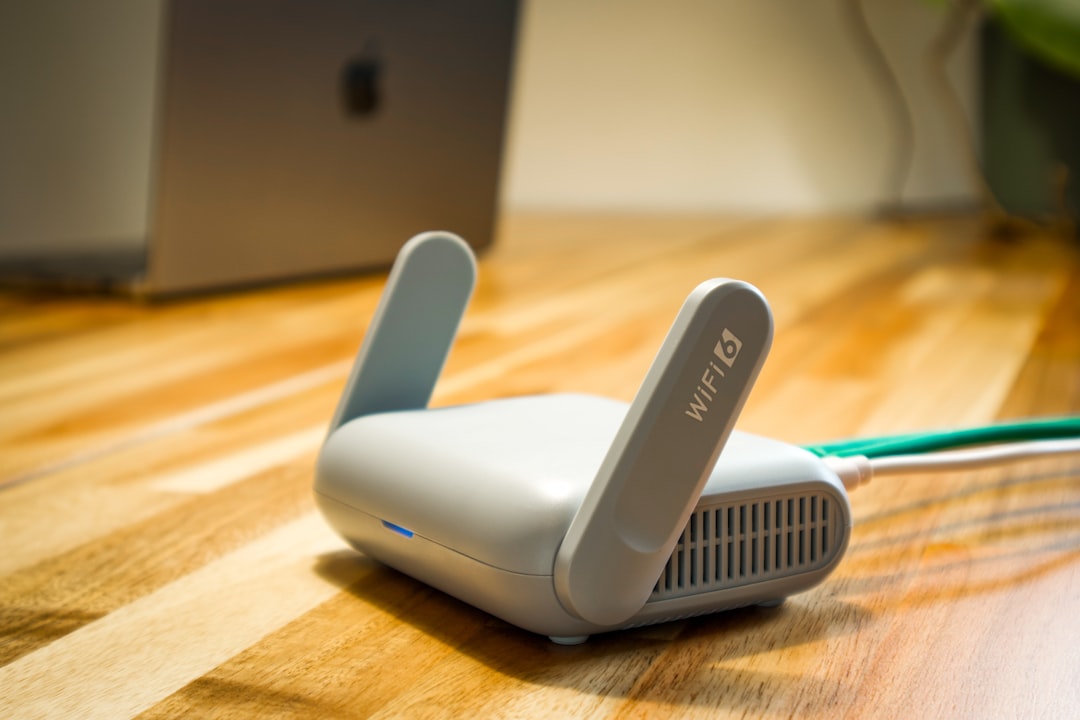
HOW TO FIX 5GHZ WIFI NOT SHOWING UP ON ANDROID PHONES
How to Fix 5GHz WiFi Not Showing Up on Android Phones – Find out why 5GHz WiFi is not showing up on Android phones. Learn how to fix router settings, check channel bands, and get your device connected fast. In short, this guide explains 5ghz wifi not showing up android in plain language.
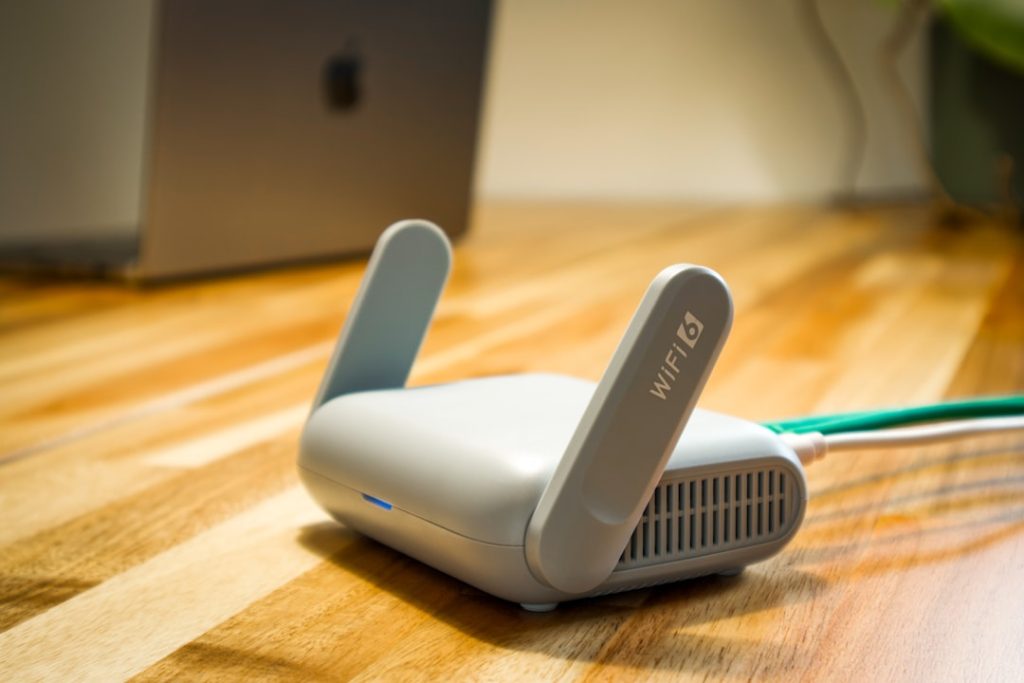
5ghz wifi not showing up android: Direct answer
When 5GHz WiFi is not showing up on an Android device, the router is usually broadcasting on an unsupported channel or the phone has a temporary network glitch. Users should first restart the phone in airplane mode. Next, check the router settings to ensure the 5GHz band uses a supported channel like 36 or 40.
5ghz wifi not showing up android: Key Takeaways
- Router channel selection is the most common reason a 5GHz network remains hidden from Android devices.
- DFS channels on 5GHz routers often cause detection issues because many Android phones lack support for them.
- Temporary network glitches on Android can be fixed by toggling airplane mode and restarting the device.
- Not all Android phones support 5GHz WiFi, so users must verify their device hardware capabilities.
- Splitting dual band router networks into separate names prevents phones from hiding the 5GHz option.
What’s New Today with 5GHz WiFi Not Showing Up on Android
Recently, more users report that 5GHz WiFi is not showing up on Android devices after a router update or phone software patch. As a result, connectivity issues are rising. For example, modern routers now default to automatic channel selection, which often switches to DFS (Dynamic Frequency Selection) channels that many Android phones simply cannot see [2]. Therefore, understanding these updates is crucial for maintaining a stable connection.
Overview of 5GHz WiFi Not Showing Up on Android
Watch on YouTube
The issue of 5GHz WiFi not showing up on Android phones is a common frustration. The 5GHz band offers faster data rates and less interference than the older 2.4GHz band. However, it has a shorter range and stricter device requirements. When a phone fails to detect this network, the problem usually stems from a mismatch between what the router broadcasts and what the phone understands [1]. In addition, the 5GHz band operates on multiple channels, some of which require special permissions or hardware support that older or mid-range Android phones lack [3]. Consequently, the phone ignores the signal entirely.
Key Features of the 5GHz Band
The 5GHz frequency band provides significant advantages for wireless networking. First, it supports wider channels, which allows for faster data transmission. Second, it experiences less interference from common household devices like microwaves and Bluetooth gadgets. However, these benefits come with a catch. The 5GHz signal degrades faster through walls and solid objects. Meanwhile, the router must broadcast on a channel that the receiving device supports. If the router uses a channel that the Android phone cannot process, the network becomes invisible to that device [2].
Pros and Cons of 5GHz Networks
Pros
- Faster maximum data transfer speeds compared to 2.4GHz.
- Less crowded, meaning fewer signal drops from neighbor networks.
- Ideal for high-bandwidth tasks like video streaming and online gaming.
Cons
- Shorter range limits coverage in large homes.
- Poor penetration through physical barriers like concrete walls.
- Compatibility issues with older or budget Android devices.
Key Insights into 5GHz WiFi Not Showing Up on Android
One major insight is that the problem is rarely the phone’s fault. Instead, the router configuration is usually the culprit. For instance, if a router is set to use automatic channel selection on the 5GHz band, it might land on a DFS channel. DFS channels are shared with radar systems, and many consumer Android phones disable support for them to avoid interference [2]. Therefore, the phone will not list the network. Furthermore, some users discover that their phone supports 5GHz but still fails to detect it. In this case, a simple hardware reset or network settings reset on the phone often resolves the issue [4].
Patterns in Connectivity Loss
Technicians observe clear patterns when 5GHz WiFi is not showing up on Android. First, the issue often happens right after a router firmware update. These updates can reset custom settings back to default, triggering the automatic channel selection problem. Second, users who travel often report missing networks because their phone’s region settings conflict with the router’s region [2]. As a result, the phone restricts certain channels that are legal in one country but not another. Meanwhile, another pattern involves battery saver modes on Android. These modes can temporarily disable 5GHz scanning to save power, making the network vanish from the list.
Controversies in Router Design
There is an ongoing debate about router manufacturer defaults. Many routers come with smart connect or band steering enabled by default. This feature combines the 2.4GHz and 5GHz bands under one network name. However, this setup often confuses Android devices. The phone might connect to the slower 2.4GHz band and hide the 5GHz option entirely. Critics argue that manufacturers should separate these bands by default to give users more control. On the other hand, supporters claim smart connect simplifies the user experience. Despite the intent, this feature frequently causes the 5GHz WiFi not showing up on Android problem [1].
Blind Spots in Troubleshooting
Many users overlook a few blind spots when diagnosing this issue. First, they forget to check if their Android phone actually has 5GHz hardware. Users can verify this by going to Settings, selecting Network and Internet, tapping WiFi, and checking the hardware properties of the connected device [5]. Second, people often ignore the physical distance. Since 5GHz has a shorter range, a phone in a distant room might not see the network, leading users to falsely assume a technical glitch. Finally, temporary software glitches are a massive blind spot. A simple toggle of airplane mode can clear the cache and restore visibility [4].
Opportunities for Better Connectivity
Fixing this issue presents a great opportunity to optimize the entire home network. By addressing the 5GHz WiFi not showing up on Android, users can also improve speeds for all their devices. For example, separating the network names for 2.4GHz and 5GHz allows users to manually connect heavy-duty devices to the faster band. In addition, locking the router to a specific channel prevents future drops. Therefore, this troubleshooting process is not just a repair task but a chance to build a more reliable digital environment.
Advanced Breakdown of Router Channels
To truly understand why 5GHz WiFi is not showing up on Android, one must look at channel bands. The 5GHz spectrum is divided into several sections. Channels 36 to 48 are standard and work with almost all devices. Channels 52 to 144 are DFS channels. As mentioned earlier, DFS channels require devices to listen for radar signals. If a router picks channel 100, an Android phone without DFS support will never see the WiFi network [2]. Furthermore, channels 149 to 161 are often restricted based on geographical region. If the router region is set incorrectly, it might broadcast on a channel that the local Android phone is programmed to ignore [2].
Network engineers often provide clear guidance on this topic. ‘Always set your 5GHz channel to a static non-DFS channel like 36 or 40 when experiencing device detection issues,’ suggests a senior network technician. This simple change eliminates the guesswork for the phone. In addition, another expert notes, ‘Smart connect features often do more harm than good in mixed-device households. Disabling it is the first step to reliable dual-band routing.’ These insights highlight the importance of manual configuration over automatic settings.
Comparison: 5GHz vs 2.4GHz Detection Issues
When comparing 5GHz WiFi not showing up on Android to similar 2.4GHz detection issues, the root causes differ significantly. The 2.4GHz band is universally supported, meaning almost every modern phone can detect it. Therefore, if a 2.4GHz network is missing, the problem is usually a complete router failure, a hidden network setting, or extreme physical distance. On the other hand, 5GHz detection issues are frequently tied to channel compatibility and DFS restrictions. While 2.4GHz suffers from overcrowding and slow speeds, it remains the reliable fallback. Meanwhile, 5GHz offers superior performance but demands careful router configuration to ensure broad device support.
What People Are Asking About 5GHz WiFi Not Showing Up on Android
Online forums are filled with questions about this specific problem. Users frequently ask why their laptop can see the 5GHz network but their Android phone cannot [3]. The answer usually points back to the phone’s internal WiFi chip capabilities. Laptops often have more advanced network cards that support a wider range of channels. Meanwhile, Android phones, especially older or budget models, may have limited 5GHz channel support. In addition, people ask if a VPN or custom DNS affects network visibility. While these tools do not hide networks, they can cause connection timeouts once the user joins.
Popular Searches and Questions
Search trends show that people frequently look for quick fixes. Many search for ‘airplane mode trick 5GHz WiFi’ because toggling airplane mode is a popular and effective quick fix [4]. Others search for ‘how to check if my phone supports 5GHz.’ This leads them to check their phone’s hardware properties in the WiFi settings menu [5]. Furthermore, searches for ‘router channel 5GHz Android’ are common as users learn to navigate their router admin panels. These searches indicate a growing awareness that the router, not the phone, is the usual suspect.
FAQ: 5GHz WiFi Not Showing Up on Android
Why is my 5GHz WiFi not showing up on my Android phone?
The 5GHz WiFi is likely not showing up because the router is using a channel that the Android phone does not support. For example, routers set to automatic channel selection might pick a DFS channel that older Android devices cannot detect [2].
How do I force my Android phone to connect to 5GHz WiFi?
Users can force a connection by logging into the router settings and changing the 5GHz channel to a static number like 36, 40, or 44. Additionally, separating the 2.4GHz and 5GHz network names ensures the phone can select the correct band [1].
Does every Android phone support 5GHz WiFi?
No, not every Android phone supports 5GHz WiFi. Users can check by going to Settings, selecting Network and Internet, tapping WiFi, and looking at the hardware properties of the connected device to verify its band capabilities [5].
Can airplane mode help find a missing 5GHz WiFi network?
Yes, turning on airplane mode and restarting the phone can clear temporary network glitches. After the reboot, users should turn WiFi back on while leaving airplane mode active to see if the 5GHz network appears [4].